TaskBridge for TickTick
TaskBridge for TickTick is an app for Jira Cloud. It adds Jira issues to your own TickTick and shows each task's status on the issue. It keeps the due dates right on both sides, and turns the focus time you spend on a task in TickTick into a Jira work log, when you click. When a task is done, it offers to move the issue to Done. It also adds your open issues to TickTick in one go, and makes Jira issues from your TickTick tasks.
 ▶ Watch it in 30 seconds
Getting started
- A Jira admin installs TaskBridge for TickTick from the Atlassian Marketplace. It starts with a 30-day free trial.
- Each person who uses it needs their own TickTick account. A free one is enough.
- The first time you use the app, select Connect TickTick and sign in to your TickTick. Your tasks stay in your own TickTick: nobody else on the Jira site sees them.
- To log focus time in Jira, switch Focus on in TickTick, under Settings → Features.
Questions? See Support.
What it does
Add to TickTick
Add to TickTick in the issue's ••• menu opens this form:
| Field | Starts as | Notes |
|---|---|---|
| Task name | PROJ-123 Issue summary |
Required. You can change it. |
| List | The last list you used, or your Inbox | Your TickTick lists |
| Due date | The Jira due date, if the issue has one | |
| Time (optional) | Empty | Without a time, the task is all day. The time is in your Jira time zone. |
| Reminder | None | With a time: At the due time, 30 minutes before, 1 hour before or 1 day before. All day: On the day at 9:00 or The day before at 9:00. |
| Priority | None | High, Medium, Low or None, as TickTick shows them |
| Tags | None | Your TickTick tags, up to 20 |
| Note | Empty | Optional. The task's note always ends with the Jira issue link. |
Time and Reminder stay greyed out until the task has a due date, and clearing the date empties them again. A reminder of None means no reminder: TickTick doesn't add one by itself.
Add task creates the task in your TickTick, links it to the issue, remembers the list, and shows Open in TickTick. If adding fails, the form keeps what you typed and shows the message above it. A double click creates only one task.
The issue panel
A collapsible TaskBridge for TickTick panel on the right of the issue view lists your own tasks for that issue: name, list, due date (with the time, if it has one), and Open or Done.
When the due dates no longer match since the last sync, the panel says which side changed and offers to update the other one. Nothing changes until you click.
| What changed | The panel says | Button |
|---|---|---|
| Jira's due date | "Jira due date is now 14 Nov 2026." | Update in TickTick |
| Jira's due date was removed | "The Jira due date was removed." | Clear the due date in TickTick |
| TickTick's due date | "TickTick due date is now 16 Nov 2026." | Update Jira to 16 Nov 2026 |
| TickTick's due date was removed | "The TickTick due date was removed." | Clear Jira's due date |
| Both, to different days | "Jira says 14 Nov 2026, TickTick says 16 Nov 2026." | Both buttons |
Nothing is offered when both sides already have the same day. Done tasks never show these messages. Update in TickTick sets the day the panel showed; if Jira's date changed again since the panel opened, the panel reloads instead, so you see the new date first. Update Jira changes the issue's due date as you, with your Jira permissions, and only if Due date is on the issue's edit screen. In TickTick, a task keeps its time of day when its date moves, and its start date moves with it. Clear the due date in TickTick removes the task's start date too, and TickTick then removes the task's reminders.
- Add another task opens the same form.
- Unlink, on each task, asks "Unlink this task from the issue?" and then stops showing the task on the issue. The task stays in TickTick. If it's open, this issue's link is taken out of its note, so it shows again under Import from TickTick (unless its note links to another issue on the site too) and can be linked to another issue. A done task isn't changed.
- A task deleted in TickTick shows "Deleted in TickTick." A task the panel can't find, because it was moved or deleted, shows "Not found in TickTick. It may have been moved or deleted." Both keep Unlink. A task moved to another list is found again in its new list while it's open.
- A task in an archived list keeps showing its list and stays Open. TickTick doesn't let anyone change a task in an archived list, so the panel's buttons for it can't change it either.
- If you turn a task into a checklist in TickTick, TickTick makes its note, issue link included, into a checklist item. Unlink then leaves that item where it is.
- With no tasks of yours on the issue, it says "You have no TickTick tasks for this issue." with Add to TickTick.
The panel syncs when someone opens the issue. Nothing syncs in the background.
Focus time becomes a Jira work log
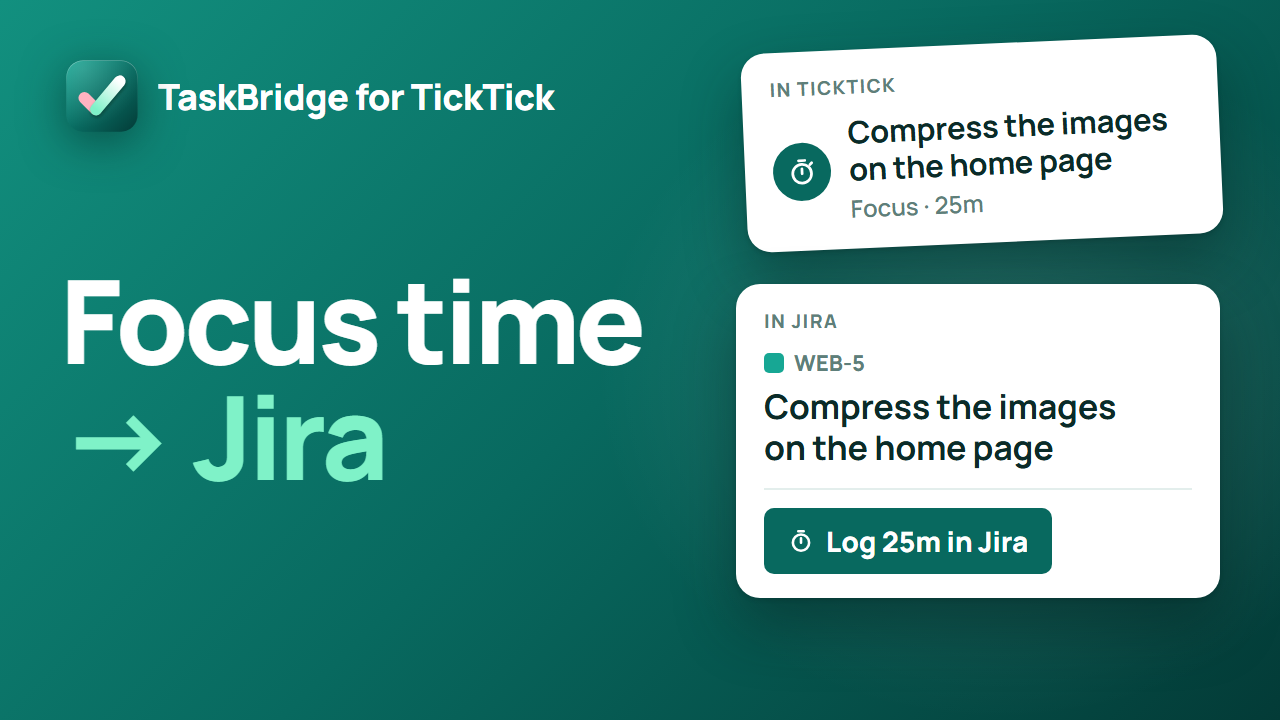
When you've focused on a linked task in TickTick, with a Pomodoro or the stopwatch, the panel shows a blue box on that task: "Focus time in TickTick: 25m not logged yet." with Log 25m in Jira. Select it, and the app adds a work log of that time to the issue, as you, starting when the first of those sessions started, with the comment "Focus time from TickTick". The panel then says, for example, "Logged 25m on PROJ-123."
- It counts focus from the last 29 days that isn't logged yet, in whole minutes.
- Time is logged once. Once logged, the same sessions aren't offered again on this Jira site, on this issue or another one, even after Unlink and linking the task again. If Log in Jira is already running for the task, maybe in another tab, the panel says so: try again in a minute. Remove my data forgets what was logged, so if you link the same task again within 29 days, focus time already logged on it is offered again: check the issue's work log first.
- If Jira doesn't confirm the work log, the panel says "Jira didn't confirm the work log. Check the issue's work log before you log this time yourself." and doesn't offer it again.
- Jira's time tracking has to be on, and you need permission to log work on the issue. If Jira refuses, the panel says why, and the time is offered again later.
- Focus has to be switched on in TickTick (Settings → Features).
- TickTick doesn't save focus sessions shorter than 5 minutes, so they never reach Jira.
- Each person's focus time is their own: the panel offers you only yours, and logs it as you.
- A done task still offers its unlogged focus time. A task in TickTick's Trash doesn't.
Move to Done
When one of your tasks on the issue is done in TickTick and the issue isn't done in Jira, the panel says "Your TickTick task is done." with Move issue to Done (named after the status). If Jira offers more than one done status, such as Done and Won't do, you pick one under Move to and select Move issue. The issue moves only when you click, with your own Jira permissions: if you can't change the issue's status, the panel doesn't offer it. If Jira needs more details to close the issue, the panel says so, and you use the issue's status menu instead.
The page in the Apps menu
TaskBridge for TickTick in Jira's Apps menu opens a page with three tabs.
Add my issues to TickTick lists, in a table, up to 50 open issues assigned to you that have no task of yours yet, most recently updated first, all ticked. Show picks which: All my open issues, In an active sprint or Due within 7 days (overdue issues included). On a site that doesn't use sprints, In an active sprint says so. The page looks at up to 500 of your most recently updated open issues, fewer if Jira is slow to answer. Pick one List and one Priority, untick any you don't want (or use Select all and Clear all), and select Add tasks, above the dropdowns (the button shows how many are ticked, for example Add 12 tasks). Each becomes a task like the ones Add to TickTick makes, with the issue's due date, linked to its issue, one at a time, with a progress bar and "Added 3 of 12" as it goes. Each row's Result shows Added, Not linked or Not added. An issue that can't be added shows why, and the run goes on. If TickTick stops responding, your TickTick connection expires or something unexpected goes wrong, the run stops and the issues not reached stay ticked.
Import from TickTick lists up to 200 open tasks in the TickTick list you pick, one per row, without the ones that already link to an issue on this site. Create Jira issue opens Jira's own Create issue window with the task's name, note and due date filled in. You pick the project and issue type and save. The app then adds the new issue's link to the end of the task's note and links the task to the issue, so it shows in the issue's TaskBridge for TickTick panel. The task stays open in TickTick.
Jira's Create window shows only the fields of the project and issue type (or request type) you choose there, so a request type without a Due date field gives the issue no due date. Pressing Escape or clicking outside the window makes Jira shrink it to the side of the screen instead of closing it: finish or close it there. If you leave the page before then, the new issue isn't linked to the task.
Link to an existing issue, beside Create Jira issue, links a task to an issue that already exists, such as one made while you were away from the page. Type the Issue key, like ABC-12, or paste the issue's link, and select Link. The app checks that you can see the issue, then adds its link to the end of the task's note and links the task to it, as above.
Remove my data says what the app keeps about you on this Jira site: which TickTick tasks you linked to which issues, the list you last used, and how far your focus time has been logged to Jira. Its red Remove my data button asks "Remove your data from this app?" and then deletes all of it, on every issue. Your tasks stay in TickTick. To disconnect TickTick too, unlink the app in TickTick under Settings → Integrations & Import. This tab works even when the subscription has ended or TickTick isn't connected; a message above the tabs then says why the other two can't be used. While Add tasks, Create Jira issue or Link is still running on another tab, it asks you to wait for that to finish first.
Connecting
The first time you open the form or the app's page, it says "Connect your TickTick account to add Jira issues as tasks." with Connect TickTick. You sign in to your own TickTick. If the connection stops working later, it says "Your TickTick connection has expired. Reconnect to continue." with Reconnect TickTick.
If you've connected the app before, on this Jira site or another one, Atlassian's window names the TickTick account you used then. Sign in to TickTick with that account. With a different account, the screen still says Connect TickTick afterwards.
Each person's tasks live in their own TickTick account. Nothing is shared between Jira users. A free TickTick account is enough: every feature here works on one.
To disconnect, unlink the app in TickTick under Settings → Integrations & Import → UnLink. The app then asks you to reconnect.
Who can use it
- Every Jira user on the site, in the Jira Software and Jira Service Management issue view, and on the app's page in Jira's Apps menu.
- People who can only view an issue can still add it to their own TickTick.
- Up to 50 tasks per person per issue.
Pricing
Paid, with Atlassian's standard 30-day trial. When the site's trial or subscription is no longer active, every screen says "Your subscription has ended. Ask your Jira admin to renew." and does nothing else, except that the page's Remove my data tab still works.
Not in this version
Background or real-time sync, moving issues, adding tasks or logging time automatically, completing TickTick tasks from Jira, subtasks or checklists as a Jira checklist, admins choosing which projects show the app, a project filter on Add my issues to TickTick, Confluence, adding issues from a search or the backlog, the app creating Jira issues by itself, Jira Service Management portal customers, importing completed TickTick tasks, and dida365.com (TickTick's separate service in China). Background versions need Forge to let apps reach TickTick outside a person's own use of Jira, which it doesn't today.
For Jira admins
The app asks for these permissions:
| Scope | Why |
|---|---|
read:jira-work |
Read the issue's key, summary, due date, status and transitions, and the person's open assigned issues, as the person using the app |
write:jira-work |
Three changes, each only when the user clicks it in the app's issue panel, with the user's own Jira permissions: Move to Done moves the issue to a done status, Update Jira sets the issue's due date, and Log in Jira adds a work log of the user's focus time |
storage:app |
Keep each person's links, last list, focus marks, a focus lock while Log in Jira runs, and account record in the app's own storage |
report:personal-data |
The weekly privacy report Atlassian requires |
- Outside Atlassian, it sends data only to TickTick:
api.ticktick.comandticktick.com. - It keeps each person's links, last list, focus marks (how far their focus time is logged), a focus lock while Log in Jira runs, and account record in Forge storage, which only the app can read. Each person can delete their own records on the Remove my data tab of the app's page. See PRIVACY.md.
- Because it talks to TickTick, it is not eligible for Atlassian's "Runs on Atlassian" badge.
Support: the support portal or support@launchmotionlabs.com